Page 2 of 2
Re: Bypass the error "Abusive file cannot be downloaded from Google Drive"
Posted: Tue Jan 20, 2026 3:54 am
by Tần Quảng
tobias wrote: Mon Jan 19, 2026 10:23 am
Please try again. I suppose that occasional cloud outages can occur.
Please send a log file to
support@syncovery.com with precise error messages if problems remain.
There has not been any change between these Syncovery versions except for the download of abusive files.
I closed the application, then deleted all the files in:
- C:\ProgramData\Syncovery\Database
- C:\ProgramData\Syncovery\Logs
Then, reopened the application -> Run Selected Profile(s) and sent the log file to
support@syncovery.com (Log file - 27615).
UPDATE: I discovered the problem. Syncovery created and selected a folder with the same name and path (I don't know why). After pointing back to the correct path, it compared normally.
The "Allow Downloading Files That Google Considers Risky" option also worked fine; files that previously couldn't be downloaded (due to Google flagging them as virus-infected) could now be downloaded normally.
But there's another problem: Files that are only on Google Drive but not on the drive are marked as Unaffected by Syncovery (see attached image). I deleted all the files in the Database and Logs folders, and only then did Syncovery detect that it was Affected.
Re: Bypass the error "Abusive file cannot be downloaded from Google Drive"
Posted: Tue Jan 20, 2026 10:53 am
by tobias
Hello,
the SmartTracking mode ignores deleted files by default. So your file that existed only on one side was considered a deleted file that should be ignored.
You need to click the Configure button for the SmartTracking mode and choose what to do with deleted files.
If you don't need to mirror deleted files, you can use "Standard Copying" instead. Standard copying always copies, never deletes. And it does not depend on a database.
Re: Bypass the error "Abusive file cannot be downloaded from Google Drive"
Posted: Wed Jan 28, 2026 7:23 pm
by Tần Quảng
tobias wrote: Tue Jan 20, 2026 10:53 am
Hello,
the SmartTracking mode ignores deleted files by default. So your file that existed only on one side was considered a deleted file that should be ignored.
You need to click the Configure button for the SmartTracking mode and choose what to do with deleted files.
If you don't need to mirror deleted files, you can use "Standard Copying" instead. Standard copying always copies, never deletes. And it does not depend on a database.
I've specified a subfolder on Google Drive, but when I run Profile, it scans the Change History in the root folder (
\) first before scanning the specified subfolder, which takes a considerable amount of time. Is there a way to make it scan only the folder I specified (ignoring the root folder
\)? I've looked in Profile Settings but there doesn't seem to be such an option?!
Re: Bypass the error "Abusive file cannot be downloaded from Google Drive"
Posted: Thu Jan 29, 2026 8:35 am
by tobias
Hello,
the history is always global.
But you can disable history processing entirely for the profile.
To do that, you can click on the Cloud button and remove the following checkmark on the second tab sheet:
- Changes Based Listing
Re: Bypass the error "Abusive file cannot be downloaded from Google Drive"
Posted: Sat Jan 31, 2026 5:24 am
by Tần Quảng
tobias wrote: Thu Jan 29, 2026 8:35 am
Hello,
the history is always global.
But you can disable history processing entirely for the profile.
To do that, you can click on the Cloud button and remove the following checkmark on the second tab sheet:
- Changes Based Listing
I turned off the "Changes Based Listing" option as you suggested:
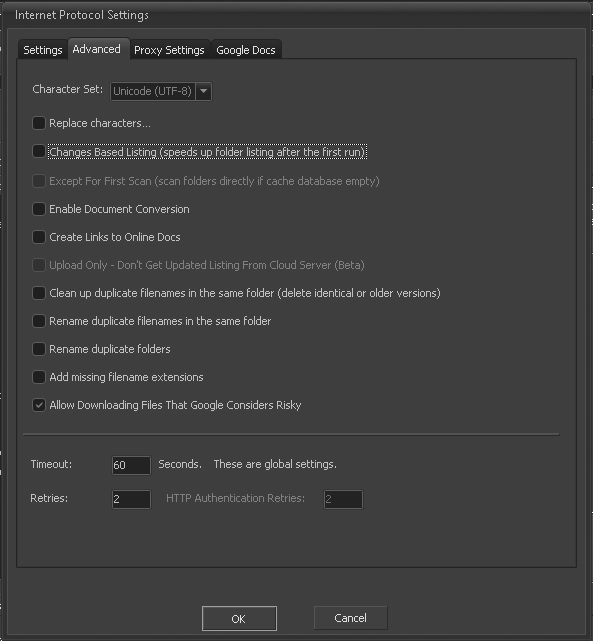
- Changes Based Listing.jpg (61.57 KiB) Viewed 289480 times
But when running Profile, it still processes the revision history at the root path. I can only use the Skip option to have it process the history at the subdirectory path I specified.
Re: Bypass the error "Abusive file cannot be downloaded from Google Drive"
Posted: Sat Jan 31, 2026 2:24 pm
by tobias
Hello,
I don't really think that is possible. Maybe you are confusing profiles, or the job is still running and using old settings.
Make sure you stop it completely so it reloads the new settings. If you are using real-time, stop the scheduler too and restart it.
If problems remain, please send a log file to
support@syncovery.com.
Re: Bypass the error "Abusive file cannot be downloaded from Google Drive"
Posted: Mon Feb 02, 2026 7:58 am
by Tần Quảng
tobias wrote: Sat Jan 31, 2026 2:24 pm
Hello,
I don't really think that is possible. Maybe you are confusing profiles, or the job is still running and using old settings.
Make sure you stop it completely so it reloads the new settings. If you are using real-time, stop the scheduler too and restart it.
If problems remain, please send a log file to
support@syncovery.com.
This issue appeared after adding an account and running Profile for the first time (even with Changes Based Listing disabled before running Profile). Subsequent runs of Profile will seemingly no longer present this issue; it will still display the path as
/ but will directly jump to read the subdirectory I specified.
Re: Bypass the error "Abusive file cannot be downloaded from Google Drive"
Posted: Mon Feb 02, 2026 11:58 am
by tobias
I really can't produce any such behavior here. If it's OK now, I need to consider the case closed.
Syncovery may have to scan parent folders to get the folder ID. But that's not the complete history.